What's changing?
We've been working towards a stronger, more modern foundation for the platform you rely on every day, one that gives us the opportunity to evolve and enhance your workforce management solution.
The start of this journey, is a new platform; design & experience for RotaMaster administrators.
Questions
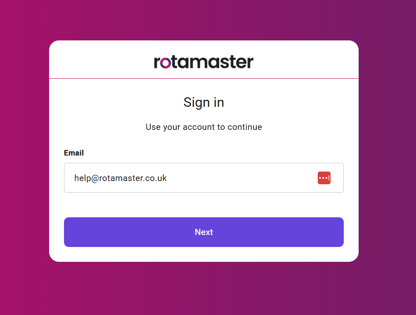
Q: How do I login to the new RotaMaster?
A: You can login to the new RotaMaster by going to https://app.rotamasterweb.co.uk/
Q: How do I login to the new RotaMaster, if I work for multiple organisations?
A: Logging into the new RotaMaster here, if the email address used for your admin account is the same across multiple organisations, you will be prompted to select the organisation you are logging into.
Q: How do I login to the Staff Hub?
A: Logging to Staff Hub and Staff Hub App remains exactly the same. It is the admin portal that has a new URL, design and experience.
Q: Do I have to change my password?
A: No. Switching to the new RotaMaster does not require you to change your password.
Q: Can I login to the current RotaMaster?
A: Yes, for a short period of time after your switchover, you will be able to login to the current admin portal. Unless your organisation has made alternate arrangements with your Customer Success Manager.
Q: Where is View Rota?
A: View Rota is now called List View and is in the same Rota menu tab.
Q: Where is Rota Weekly Viewer?
A: Rota Weekly Viewer is now called Calendar View and is in the same Rota menu tab
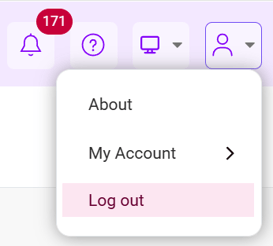
Q: How do I log out of RotaMaster?
A: In the top right corner of your screen, click the profile icon and then clock log out.
Q: How do I upload documents?
A: In the new RotaMaster, you can now upload documents directly from your local or shared drives.
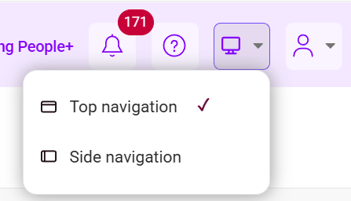
Q: How can I use the new side navigation option?
A: In the top right corner of your screen, click the display settings icon and switch between top or side navigation.