Now |
New |
|
Link to login to RotaMaster The current URL to login to the admin side of RotaMaster is https://online.rotamasterapp.co.uk/ |
Link to login to the new RotaMaster Coming with the new RotaMaster, is a new URL. This will be shared and confirmed by your organisation ahead of your chosen switchover day.
|
|
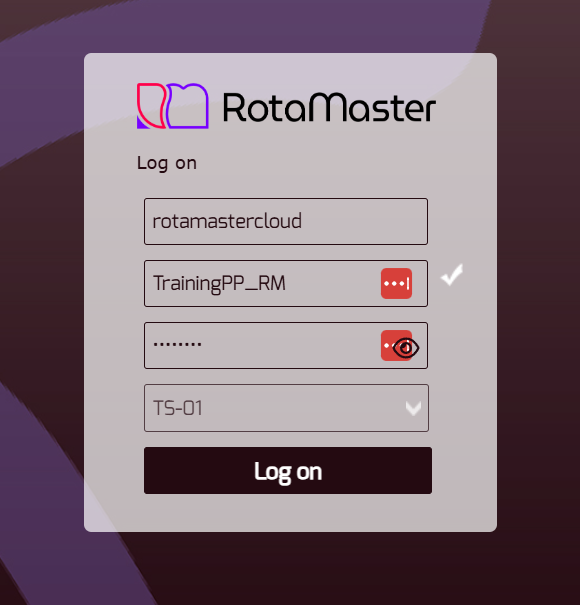
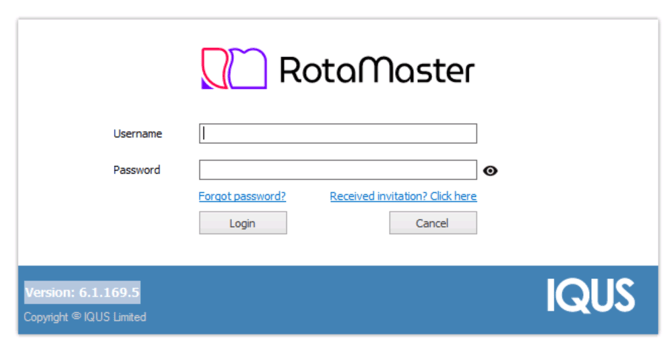
Steps to sign into RotaMaster Currently, logging in as an admin is a two step process. First, you login as your organisation; second, with your personal account details. Step 1:
Step 2:
|
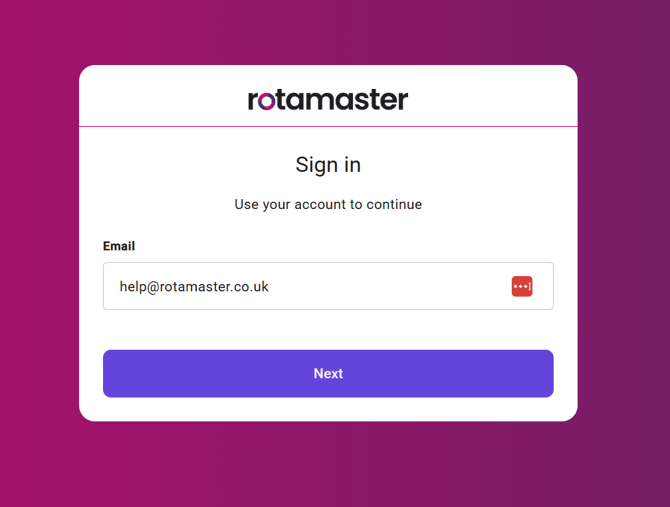
Steps to sign into RotaMaster In the new RotaMaster, there is one step where you will sign in with your personal account details. Step 1:
|
|
Working for multiple organisations Each organisation has their own username and password, used to sign in during step 1 described above. You must sign into the portal in a different tab or browser. |
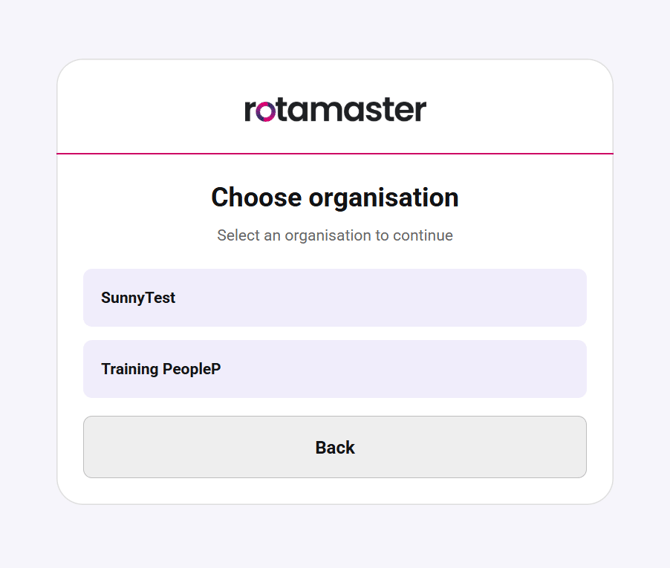
Working for multiple organisations If all the organisations you work for, have used the same email address when creating your admin account, you will be prompted to choose which organisation you are signing into.
|
|
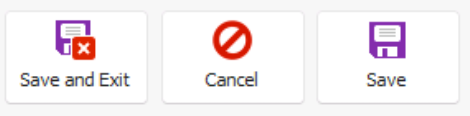
Order of cancel, save + save and exit In many screens, such as personnel records, the order of these buttons was inconsistent.
|
Order of cancel, save + save and exit We have made the order of these buttons consistent across all screens: cancel; documents; save and exit; save.
|
|
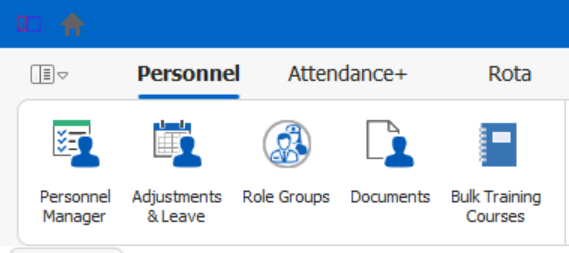
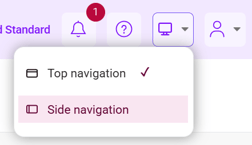
System Menu The menu to navigate the system is fixed, horizontally at the top of your screen.
|
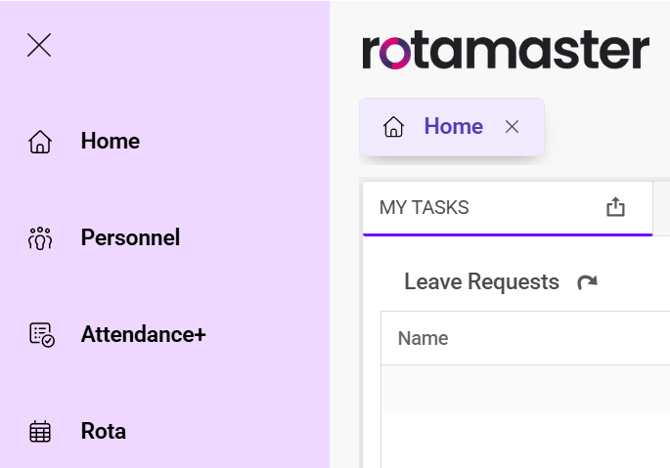
System Menu A new option is available to move the navigation vertically to the left-hand side.
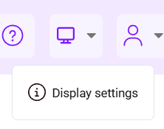
You can do this by clicking Display Settings in the top right corner.
|
|
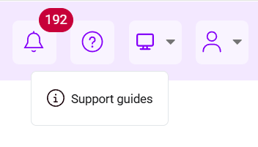
Knowledge Base You can currently access the knowledge base, here: https://help.rotamaster.co.uk/ |
Shortcut to the Knowledge Base You will now be able to access the knowledge base directly from within RotaMaster, by clicking the question mark in the top right-hand corner.
|
|
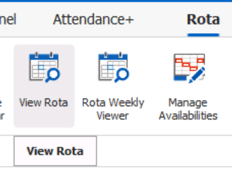
View Rota In the Rota Tab the list format of your rolled out rotas is currently called "View Rota".
|
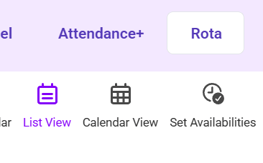
List View This has been renamed to "List View".
|
|
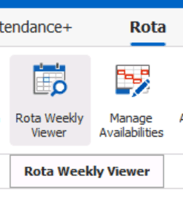
Rota Weekly Viewer In the Rota Tab the 'diary' format of your rolled out rotas is currently called "Rota Weekly Viewer".
|
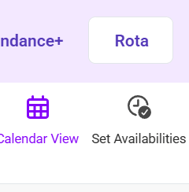
Calendar View This has been renamed to "Calendar View".
|
|
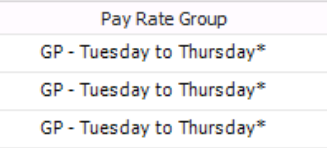
Pay Rate Groups Hourly pay rates for shifts are currently referred to as "Pay Rate Group".
|
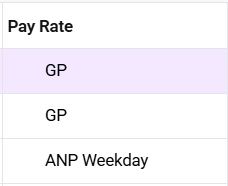
Pay Rates They are now called "Pay Rates".
|
|
Uploading Documents To add a document to RotaMaster, you must first upload the document from your local folder to the system and attach it where needed, such as a sickness record or appraisal. This makes uploading a document currently, a two step process. |
Uploading Documents You can now go straight to the location where you need to upload the document, such as for a background check in a personnel record. Making this a one step process. When searching for a file, you will access your local computers folders and drives directly. |