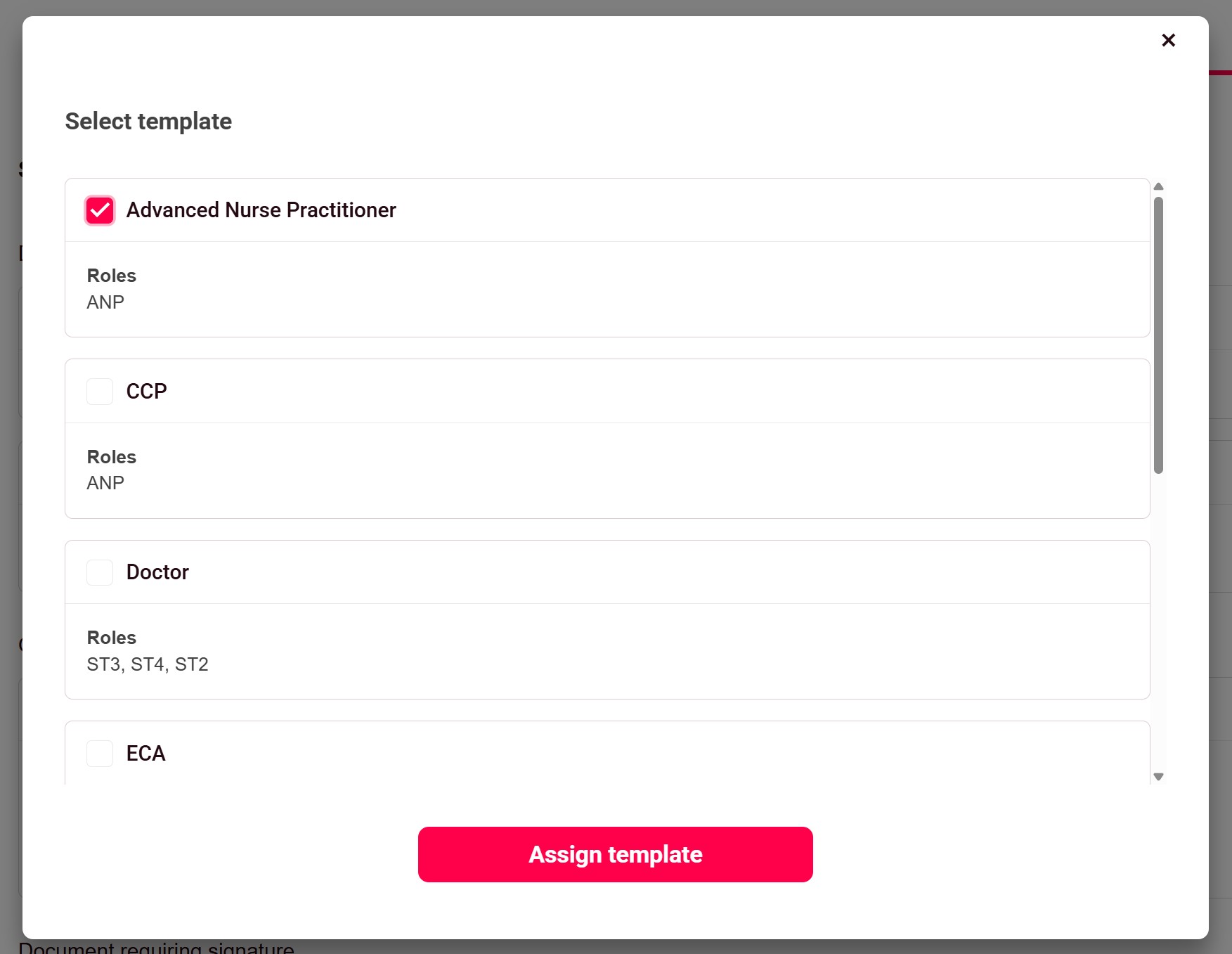
What is a template?
A candidate template allows you to configure all of the requirements for different types of roles and apply these to new candidates. Making sure each candidate is being set-up with the relevant requirements for their job and minimising any chance of choosing the wrong requirement.
Creating Templates
-
To create a template, sign into the admin side of onboarding: https://onboarding.rotamasterweb.co.uk/admin/login
-
Then navigate to Configuration > Templates
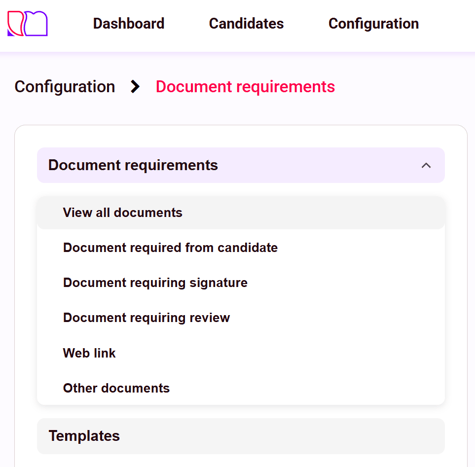
-
Click Create Template

- Give your template a recognisable name such as Advanced Nurse Practitioner or Locum ANP. Choose the relevant role and if useful, type a description for this template.
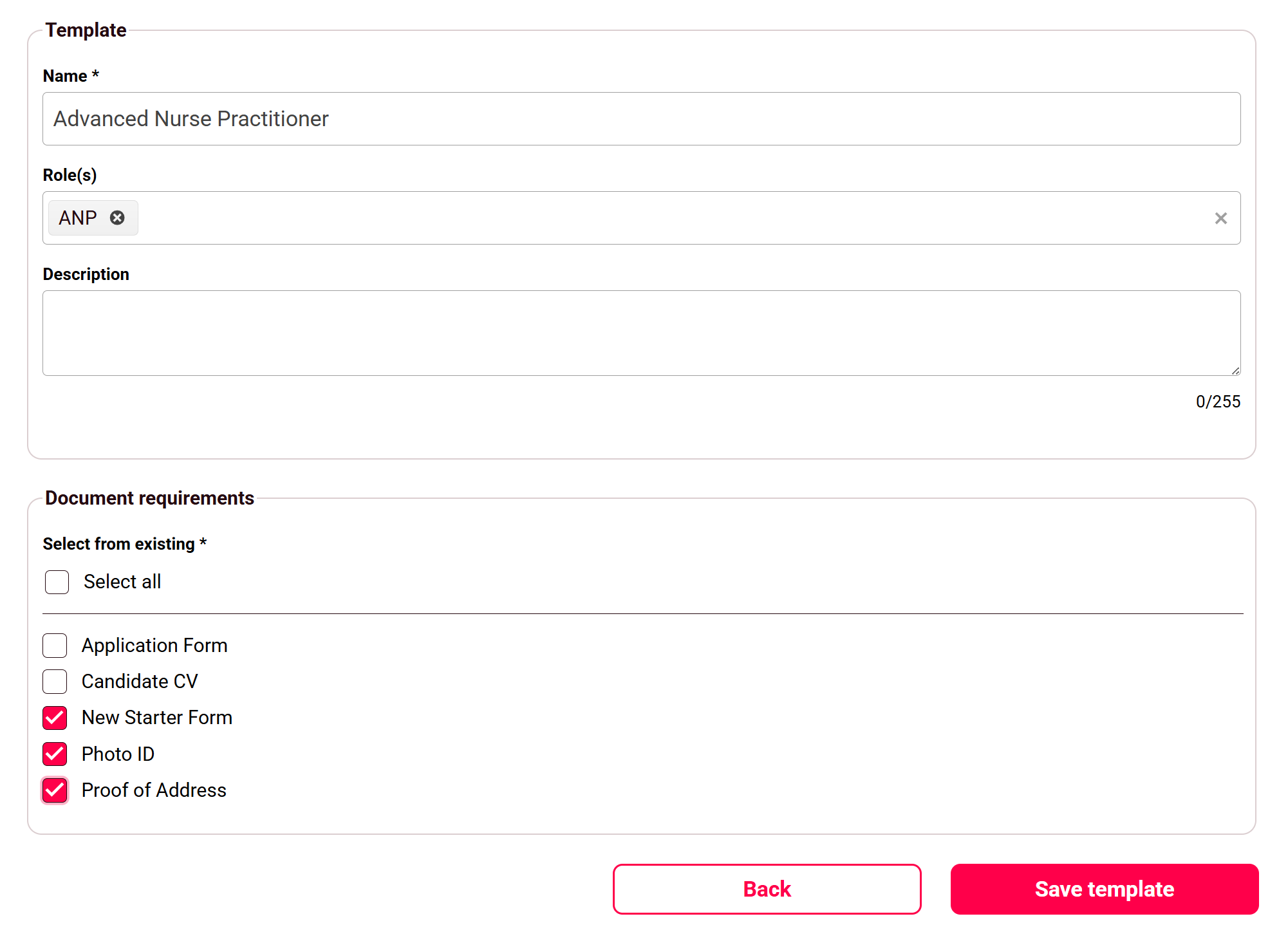
Then select the document requirements for this template and press Save template
Assign a template
After you have created a candidate, you have the option of assigning document requirements individually or assigning a template.
- Edit your candidate and go to Request / Review documents > Request documents and click Assign template

- Select your template and click Assign Template