
Multi-factor authentication (MFA) adds a security check when you sign in. With an Authenticator App, you enter a six-digit code generated on your phone.
Before you start
Your organisation must have MFA enabled. Install an Authenticator App, such as Microsoft Authenticator or Google Authenticator, on your phone. Open Staff Hub on a computer so you can scan the QR code using your phone.
If you already receive MFA codes by SMS or email, contact your RotaMaster administrator to arrange changing your existing method before starting.
Set up your Authenticator App in Staff Hub
1. Choose Authenticator App
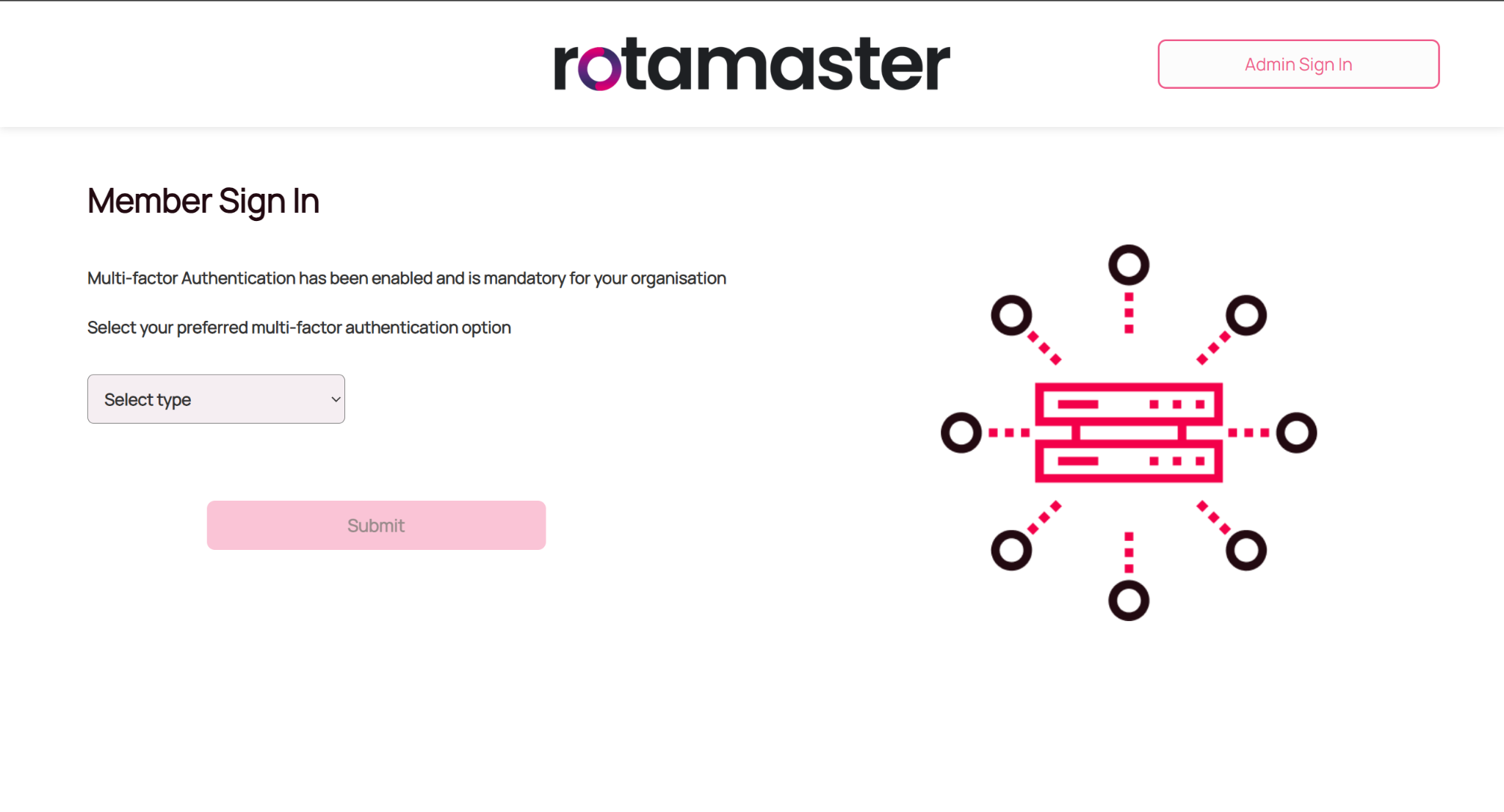
Sign in to your organisation’s Staff Hub using Member Sign In. When the MFA setup screen appears, choose Authenticator App from the Select type dropdown. A QR code appears on the page.
2. Add your RotaMaster account
Open your Authenticator App on your phone. Select the option to add an account, then scan the QR code displayed in Staff Hub. In Microsoft Authenticator, select the plus icon and choose Other account.
Keep your QR code private. Use the QR code displayed for your own account.
3. Confirm the code
Find the new RotaMaster entry in your Authenticator App. Enter its current six-digit code in the Authentication code field beneath the setup instructions, then select Submit. Once the code is accepted, setup is complete and sign-in can continue. Keep the account entry in your Authenticator App for future sign-ins.
Sign in after setup
Staff Hub
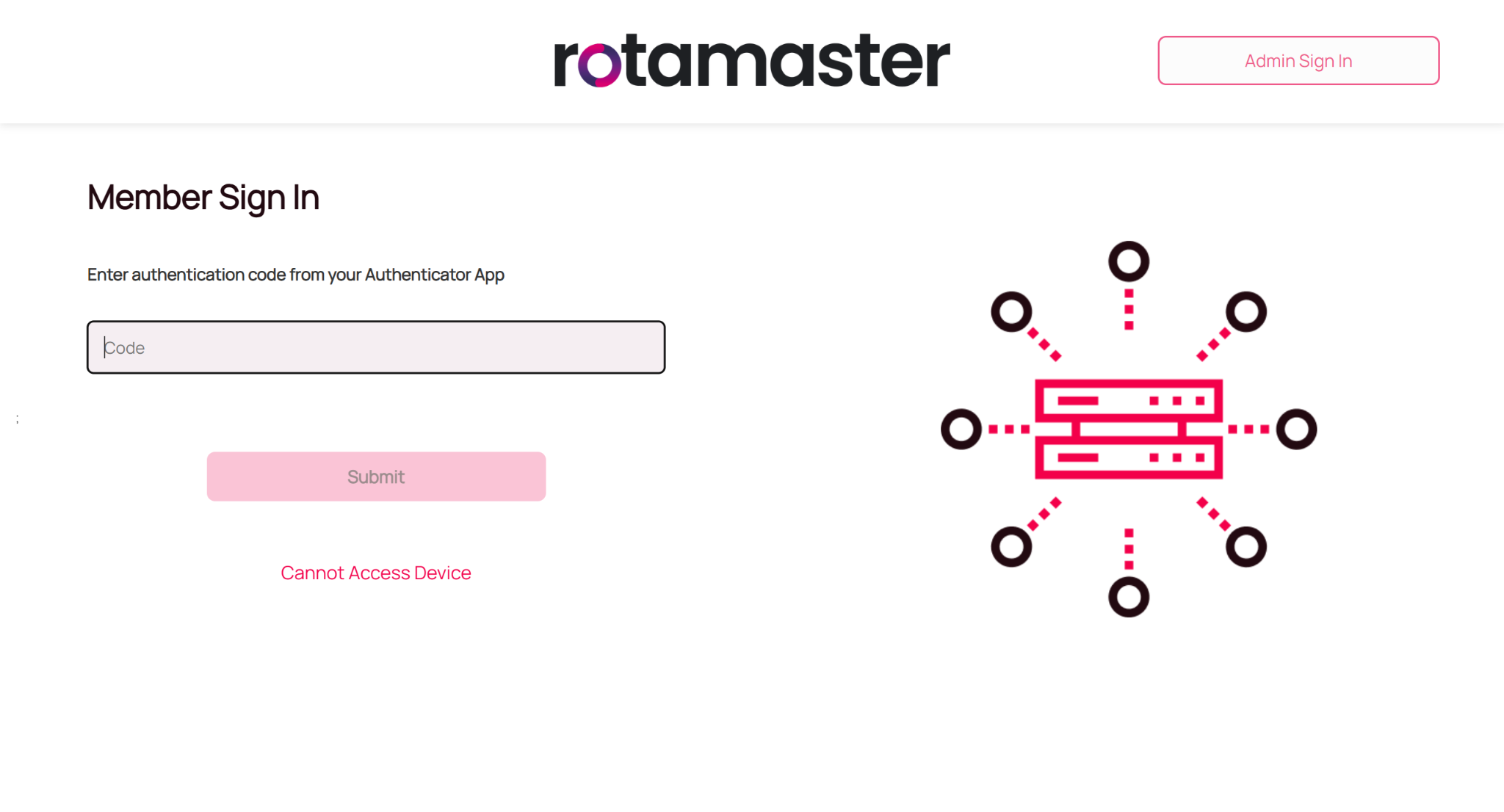
Sign in to your organisation’s Staff Hub. When asked for an authentication code, open your Authenticator App and find your RotaMaster entry. Enter the current six-digit code, then select Submit.
New RotaMaster
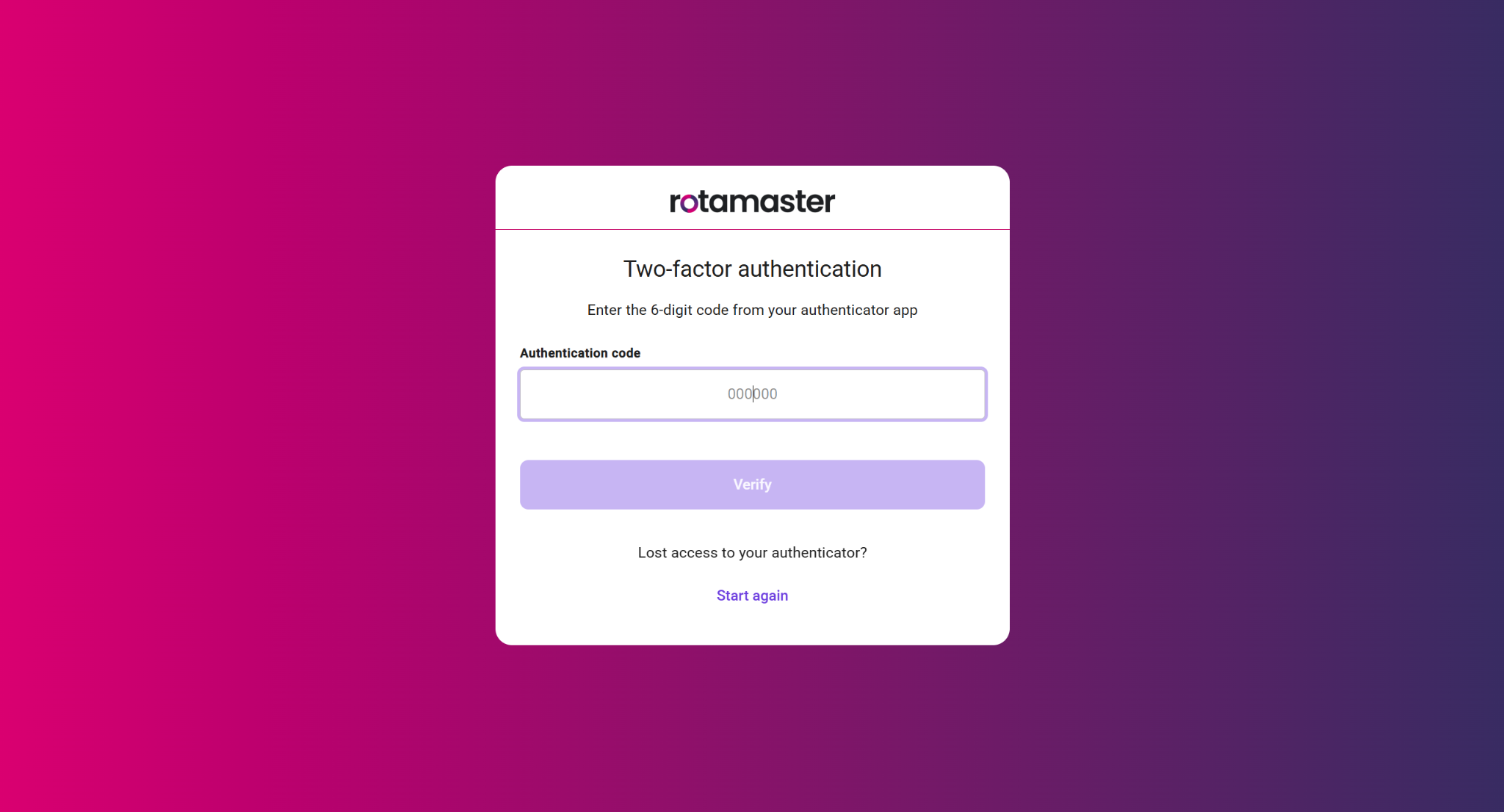
When New RotaMaster displays the Two-factor authentication screen, enter the current six-digit code from your Authenticator App in Authentication code, then select Verify.
If the code is about to change, wait for a fresh code before entering it. You do not need to scan the QR code again each time you sign in.
Need help?
Your code is not accepted
Check that you are using the correct RotaMaster entry, especially if your app contains several accounts. Try a fresh code after it changes and check that your phone has the correct date and time.
You cannot access your phone or app
Contact your RotaMaster administrator or RotaMaster Support for help resetting your MFA method. Once it has been reset, follow the setup process again to link an available device.
The setup screen does not appear
If you are being asked for a code from an existing method, or no QR code appears after selecting Authenticator App, contact your RotaMaster administrator or RotaMaster Support.