
➕ Sick Pay Configuration is available as part of People+. If you would like to learn more about this module, please contact your Customer Success Manager.
- Switching on Statutory Sick Pay Configuration
- Setting the Weekly Rate
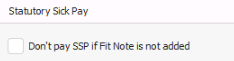
- Don't pay SSP if Fit Note is not added
- Total Allowance
- Viewing statutory sick pay allowances on personnel records
💡 Learn more about how to automate Enhanced Sick Pay calculations
Switching on Statutory Sick Pay Configuration
Statutory Sick Pay is a feature available within People+.
Please reach out to our support team to request that SSP configuration and calculations are enabled.
Setting the Weekly Rate
-
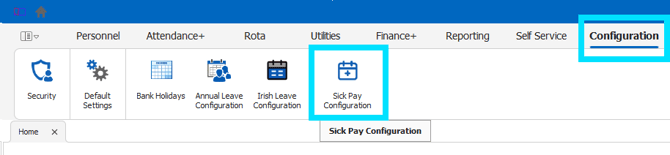
Open Configuration > Sick Pay Configuration
-
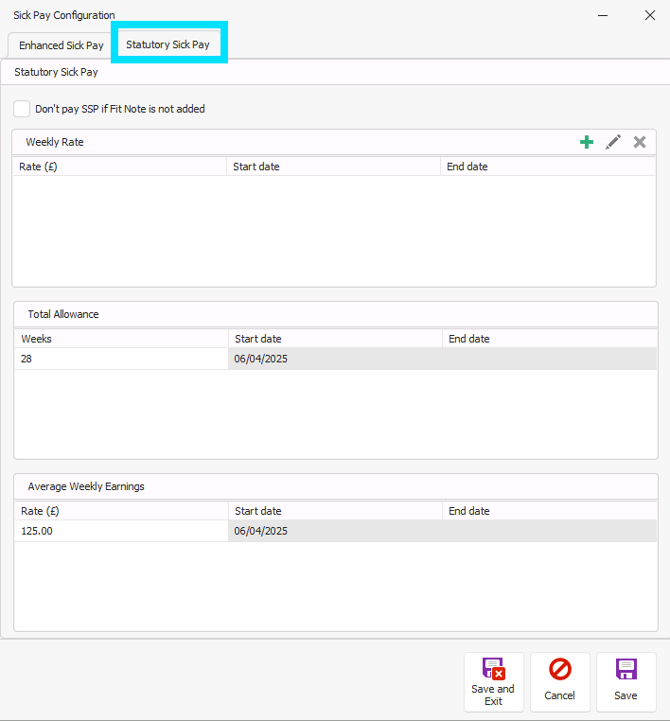
Select the Statutory Sick Pay tab
-
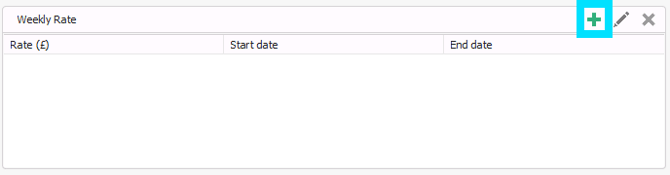
Click the green plus button to create a new weekly rate.
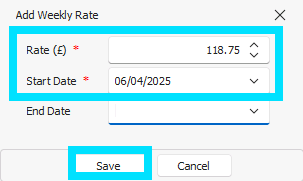
Input the 'Rate(£)' and 'Start Date', and click 'Save'.
ℹ️ Each year, you will need to add a new weekly rate with the relevant start date.
Weekly rates can only be configured to start as early as 06th April 2025.
 You will also use the 'green plus' to add the new configuration each year, and once entering a new amount, the 'End date' on the only date would update automatically to end on the day before the new rate comes in to effect.
 The 'blue pencil' will allow you to edit the weekly pay if the incorrect amount has been entered in error when setting up your configuration.
 The 'red cross' will allow you to delete a weekly amount. Please note, if you only have one rate set up you are unable to delete. You will only be able to delete previous rates if there are several weekly rates set up.
⚠️ If you delete a weekly rate, you will be prompted with a warning message...
'Deleting this rate may affect unlocked adjustments, are you sure you want to continue?' - If you continue, any unlocked adjustments will be recalculated based on the current active rate.
Once you have set up your SSP configuration, you can click 'Save' OR 'Save and Exit'.
 .
.
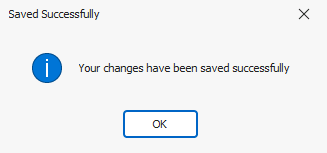
You will see a message confirming that your configuration has been saved successfully.
Do not pay SSP if Fit Note is not added
🧑💻 The calculations required for SSP contributions will be included in a later release.
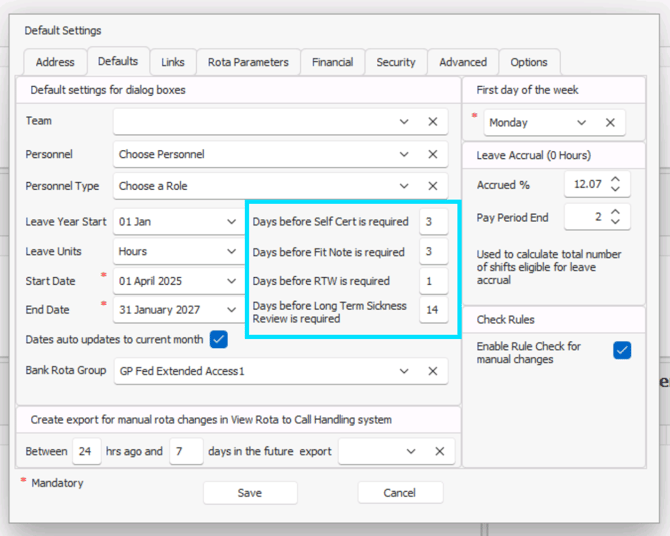
This option aligns with what you have defined in Configuration > Default Settings > Defaults, as the "Days before Fit Note is required".
✅ When enabled, no sick leave will be paid after your defined "days before Fit Note is required" until a fit note is recorded against the sickness episode that covers the appropriate period. Once a fit note is added to the sickness adjustment, it will recalculate based on the date on the sicknote, including backdating if necessary.
❌ When disabled, sick leave will be paid in line with the assigned configuration regardless of your defined "days before Fit Note is required" or if a fit note has been recorded against the sickness episode, covering the appropriate period.
Total Allowance
Aligned with Government legislation, this is set to 28 weeks within RotaMaster.
ℹ️ Should this change in the future, RotaMaster will release an update to Total Allowance.
Viewing Statutory Sick Pay Allowances on Personnel Records
🧑💻 The calculations required for SSP contributions will be included in a later release.
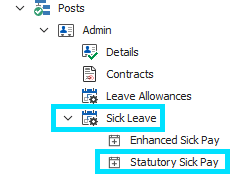
In Personnel Record>Posts>Sick Leave> Statutory Sick Pay , if you have the correct administrator permissions, you can view the remaining Statutory Sick Pay allowances.
The remaining allowance will show in either days/hours, depending on how your leave units are set up.
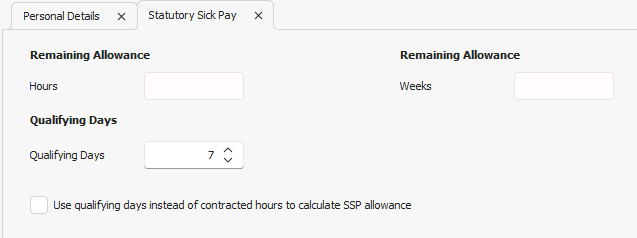
Qualifying days can also be configured within this screen. Qualifying days must be set to a value between 1 and 7, with the system default being 7.