
You can add a photograph to a person’s record from the Personal Details screen. The photograph is selected directly from your computer and is displayed on the Personnel Record once chosen.
This guide is only relevant if you have moved to the new Rotamaster, please get in touch with your customer success manager to find out more.
|
New RotaMaster no longer requires the separate “From PC to Server” upload stage used in the previous version. Select Browse and choose the image directly from your computer. |
1. Open the Personnel Record
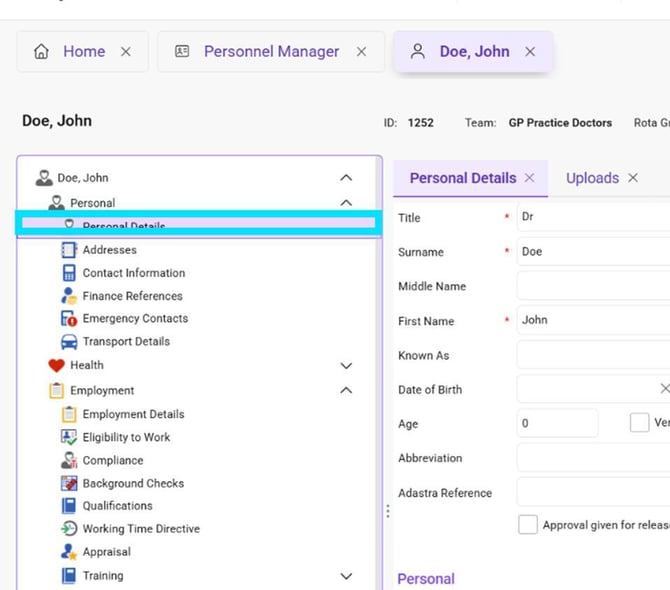
Go to Personnel > Personnel Manager. Find and open the required person, then select Personal > Personal Details from the menu on the left.
2. Select Browse in the photograph area
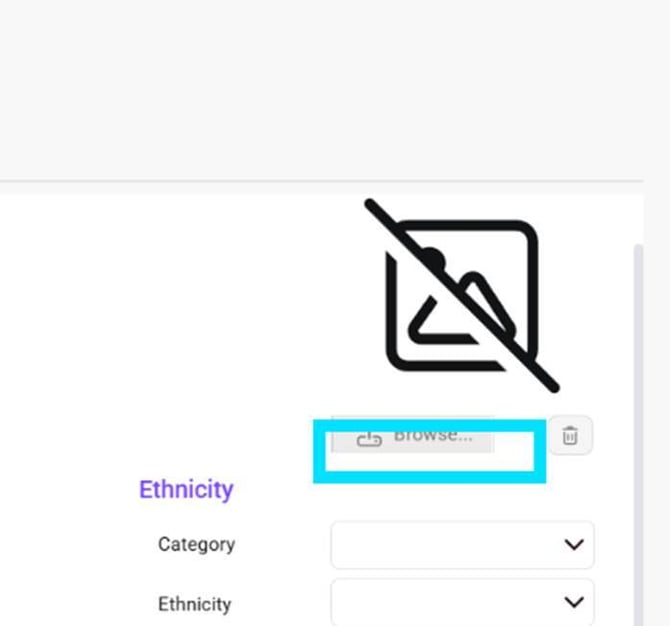
On the right-hand side of Personal Details, locate the photograph section and select Browse.
3. Choose the photograph from your computer
Your computer’s file browser will open. Navigate to the folder containing the photograph, select the image you want to use, and select Open.
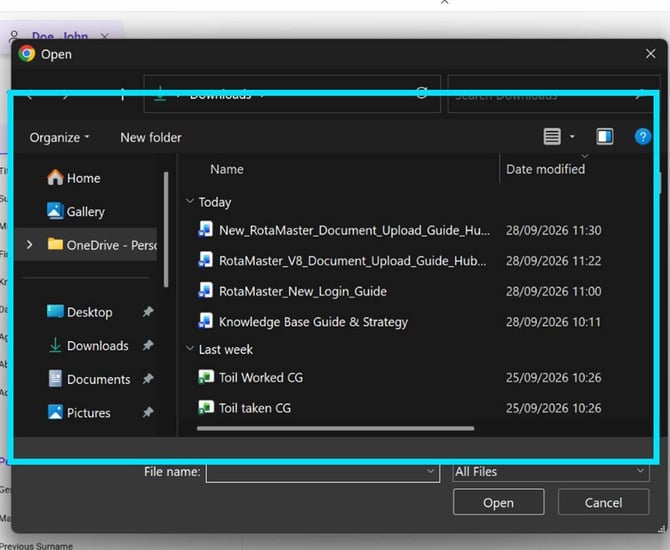
When the required image is highlighted, select Open to return to RotaMaster.

4. Confirm the photograph and save the record
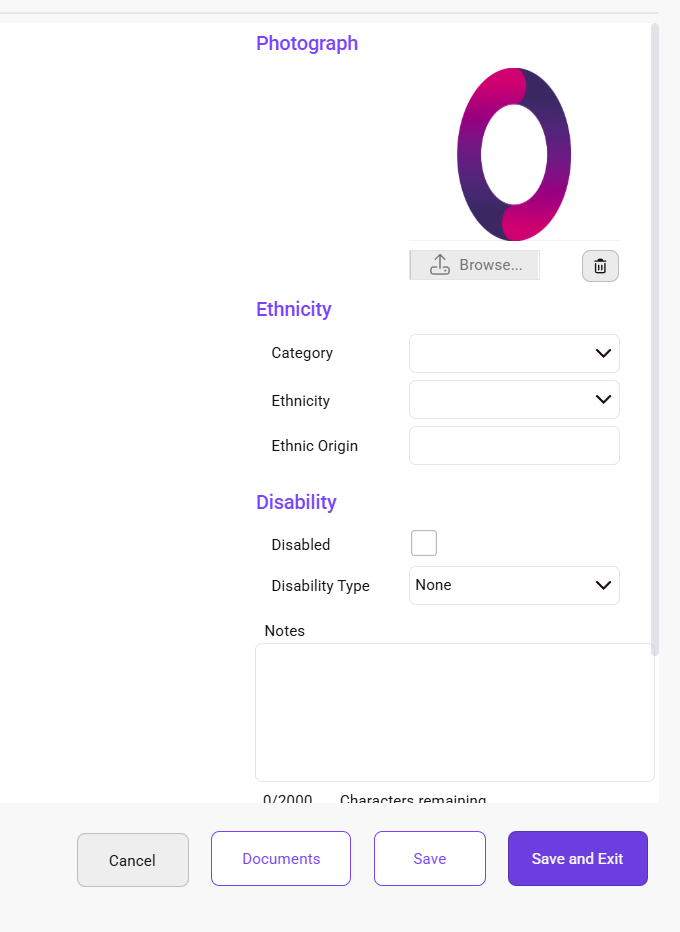
The photograph will now appear on the Personnel Record. Select Save to keep the record open, or Save and Exit to save your changes and close the record.
|
If you select the wrong image, use Browse again to choose a different photograph before saving the Personnel Record. |