
- What is the two week view?
- Editing and assigning shifts
- Rota Weekly Viewer Toolbar
- Filters & Options
What is the two week view?
The two week view displays up to 14 days ahead and includes: shifts, sickness and leave.
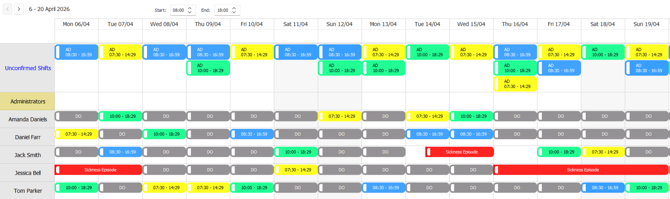
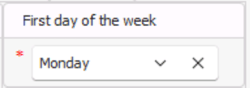
The start of your week is set in Configuration > Default Settings > Defaults > First day of the week...
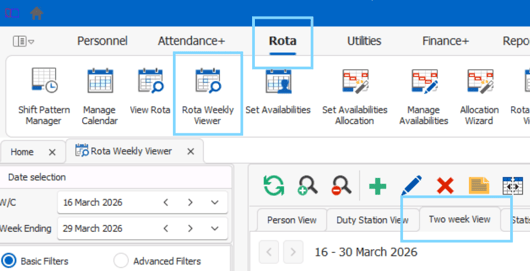
You can access the two week view by going to Rota > Rota Weekly Viewer > Two Week View
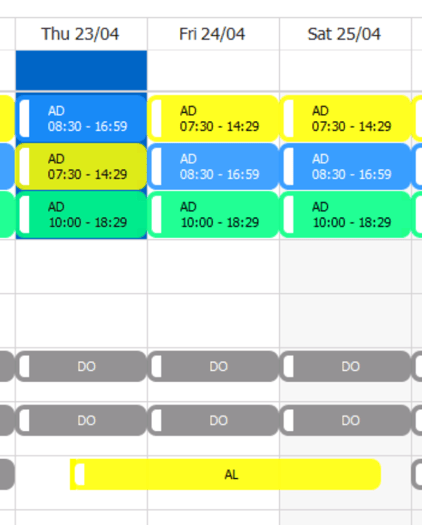
Any instances of sickness will show as a red bar...
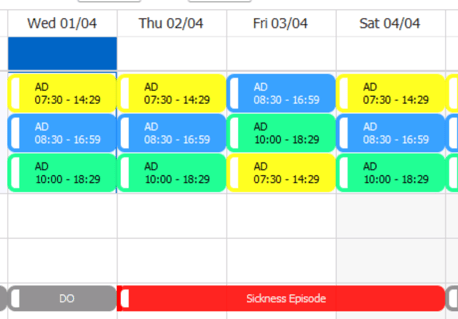
And any instances of leave will show as a yellow bar...
💡 Learn more about creating and editing duty stations
Editing & assigning shifts
Shifts can be edited by either double-clicking the shift card, or selecting it and pressing the edit button in the toolbar.
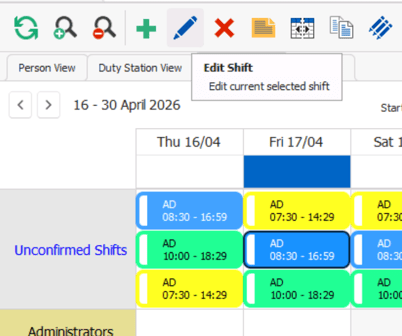
The shift card colour is based on the colour assigned to the duty station on the shift.
💡 Learn more about creating and editing duty stations
You can also assign a shift to someone by dragging and dropping it from the top of the two week view, in the Unconfirmed Shifts row.
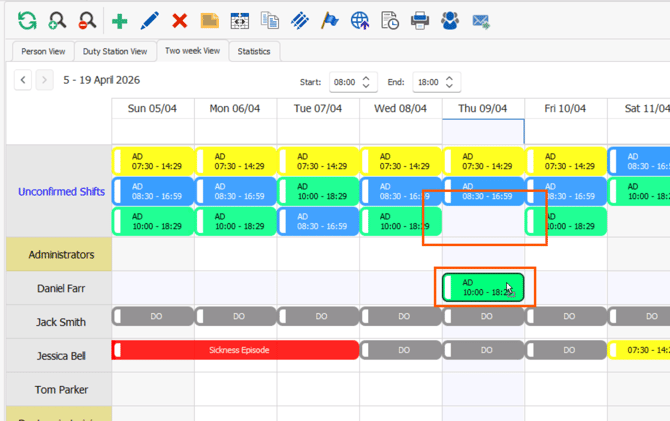
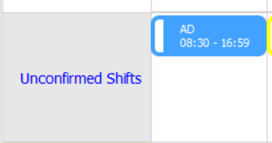
Unconfirmed shifts will always show at the top of the two week view so that you can instantly see vacant shifts and gaps in your rota. The shift card will show the short code based on the role of the shift and the start / end times.
💡 Learn more about creating and editing roles
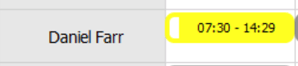
Once a shift has a confirmed person assigned, only the shift start and end times will show on the shift card.
- Vacant, unconfirmed shift
- Filled, confirmed shift
Filters and options
In Rota Weekly Viewer: Two week view, you have the option to tailor and filter what you see in the left-hand menu.
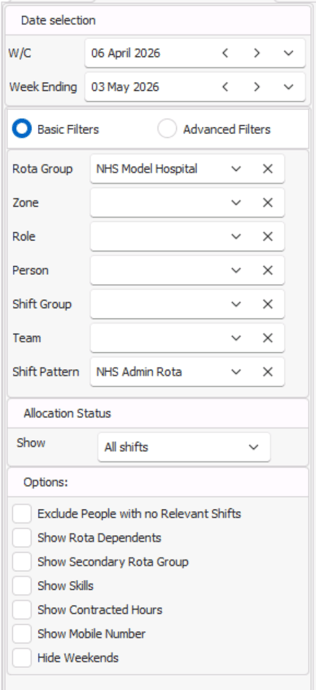
Allocation Status - This allows you to choose between all shifts, unallocated shifts and allocated shifts
Exclude people with no relevant shifts - If a staff member isn't working any shifts in the selected week they will not show as an option on the left side of the screen
Show Rota Dependents - Dependents will be shown as an additional black box under your shift card, hovering over the dependent will show the details

Show Secondary Rota Group - Ticking this will include people who have secondary access to the Rota Group you have filtered to.
Show Skills - Skills will be shown in the dialogue box generated when hovering your mouse over a shift
Show Contracted Hours - Contracted vs Hours Worked will be displayed for each staff member under their name
Show Mobile Number - Mobile numbers will be shown in the dialogue box generated when hovering your mouse over a shift
Hide Weekends - Hiding weekends in two week view will now display 10 days instead of 14.